Sort quotes on an affinity board
You get piles of related quotes on a canvas, and a way to turn a pile into a theme.
If you haven't made a board yet, see Create a board.
Add quotes
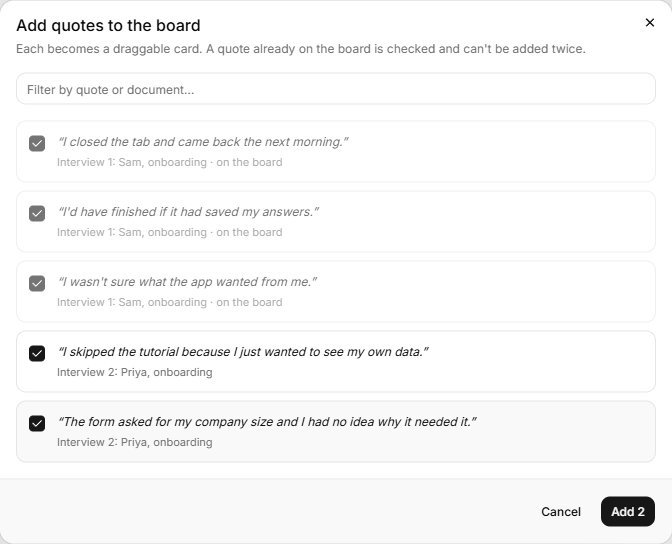
- Click Add quotes in the bar at the bottom of the canvas, or press Q.
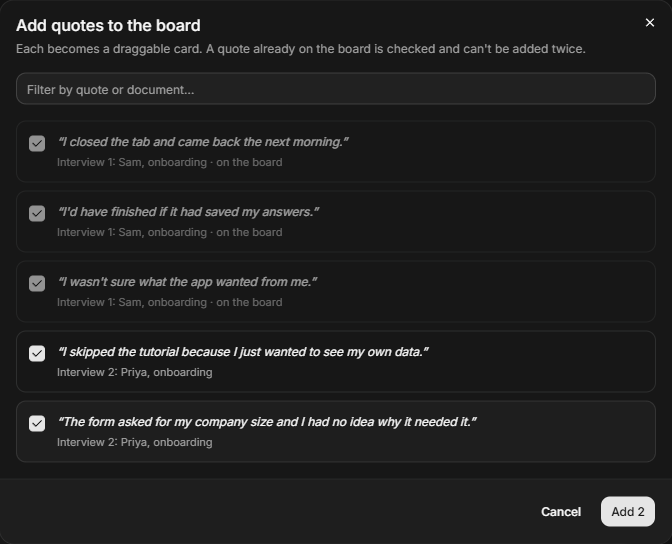
- Tick quotes in Add quotes to the board. Quotes already placed are ticked and greyed.
- Click Add. The button shows how many you ticked, such as Add 2.
Each quote becomes a card you can drag. A card reads as a sheet of paper. A quote card turns amber, with a ring around it, while it is selected, so you can tell which one the inspector is showing.
Ask the AI to draft piles in the Ask AI panel (top right of the board, or Ctrl/Cmd+J). It piles the loose cards and any quotes not yet on the board, and leaves cards already in a pile where they are. See Draft a board with AI.
Make a cluster
- Click + Cluster (or press C), or double-click a blank part of the canvas and choose Cluster.
- Drag quote cards into the box.
- Select the cluster and type in Name (placeholder "Name this pile").
Double-click and choose Note (or click + Note, or press N) for a blank card. Type its heading in Note in the inspector.
To take a card out, drag it clear of the box, or select it and click Move out of cluster.
Turn a cluster into a theme
- Select the cluster.
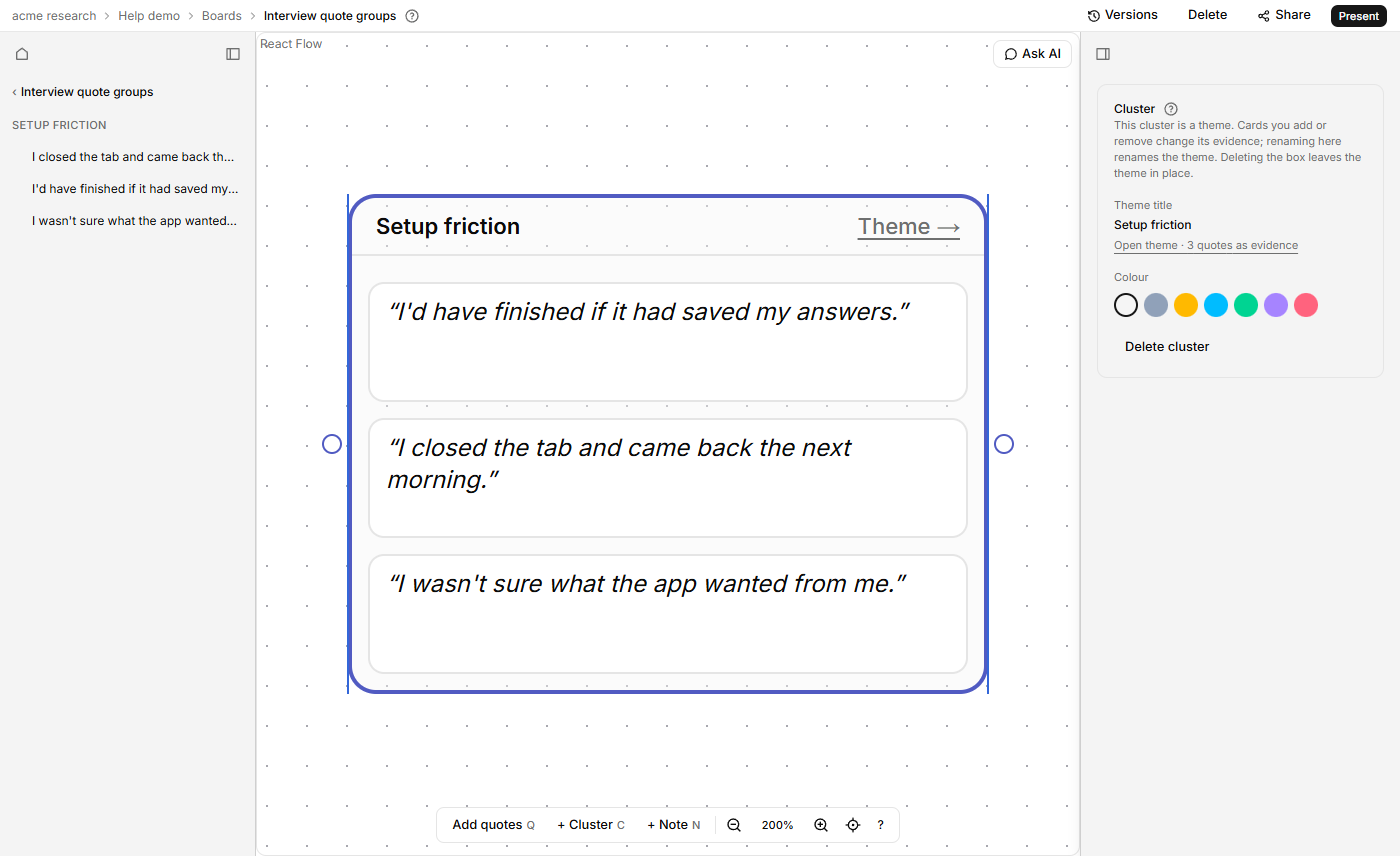
- Click Create theme from N quotes, where N is the number of quotes in the cluster. With no quote cards inside, the button reads Add a quote card first and is greyed out.
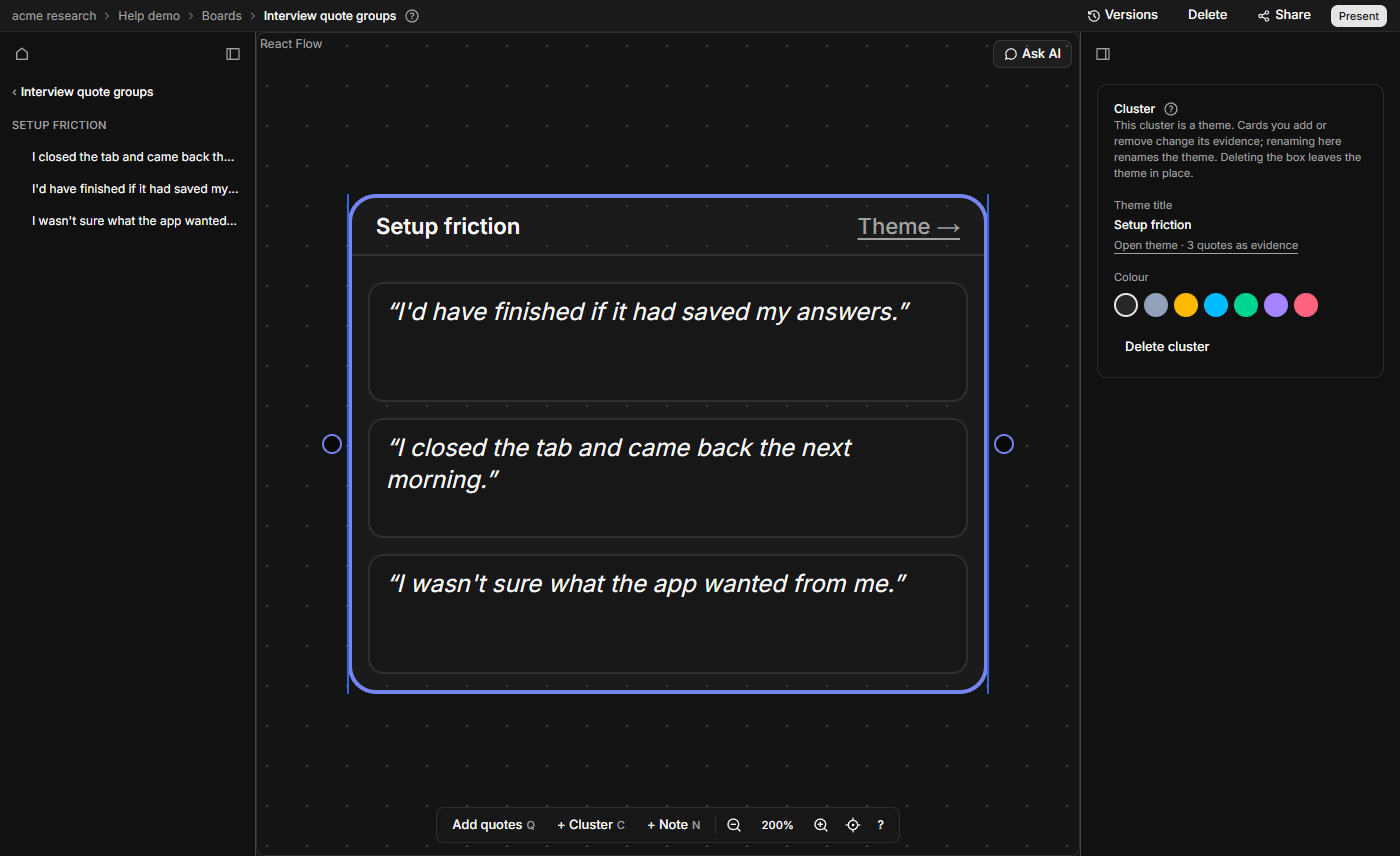
The theme opens. Its evidence is the quotes in the cluster, and the box shows a Theme tag. From then on, cards you add or remove change the theme's evidence, and renaming the box renames the theme. Click Theme → on the box to open it. See Group quotes into a theme.
Colour a cluster
Select it and click a swatch under Colour: Slate, Amber, Sky, Emerald, Violet or Rose. No colour clears it.
Remove things
- A card: select it and click Remove from board. If its cluster is a theme, the quote stays in the theme.
- A cluster: click Delete cluster in the inspector, then Delete cluster again. Its cards stay on the board, and a theme it became is kept. Backspace won't delete a cluster: "Delete a cluster from its inspector."