Link a screen to a process step
You get a screen tied to the step it carries out, so someone looking at the screen can jump to the process behind it, and someone looking at the step can see which screens implement it.
You need a screen on a prototype and a step on a process diagram, service blueprint or journey map in the same project. See Draw screens and shapes on a prototype and Draw a process diagram. Only a Step can be linked. A Decision or Start / end cannot.
Link a screen to a step
- Select the screen, a top-level frame, on the prototype.
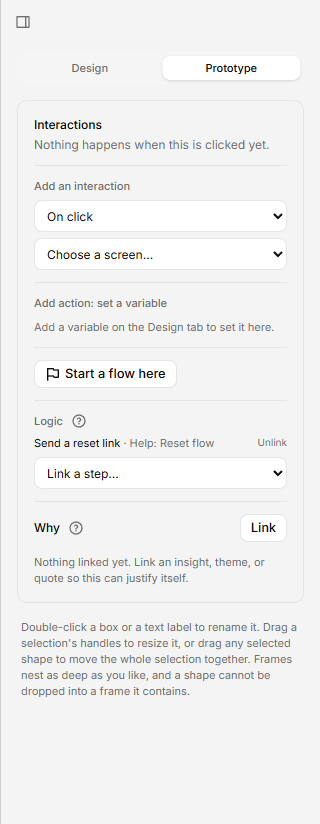
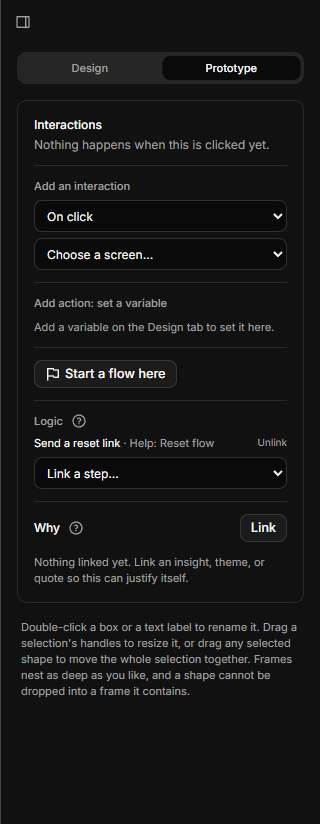
- In the inspector, open the Prototype tab. Find Logic.
- Open the menu Link this screen to a process step, which reads Link a step…. Steps are grouped under the name of their board.
- Pick the step. It appears in a list above the menu.
A step with no label shows as "Untitled step". If there are no steps yet, Logic says "No process steps in this project yet. Draw the process first, and this screen can point at the step it implements."
A screen can link to several steps. Linking the same pair twice does nothing.
Open the step
Click the step's name in Logic. The process board opens, framed on that step.
Unlink it
Click Unlink beside the step. Only the link goes. The step stays on its board.
See it from the step
Select the step on its board. Implemented by lists each screen linked to it, with the name of its prototype beside it. Click a screen to open it. The list is read-only: to remove a link, unlink it from the screen.
In Present
A screen with a step linked lets you press ↓ to see the process. If the screen links to several steps, ↓ opens the first one you linked. See Present your prototype.
If you delete a step
Deleting a step removes the links to it. Press Backspace or Delete on a linked step and the board tells you how many went, such as "1 screen link removed." There is no undo on a process board, but restoring a version from before the delete (Versions) brings back the step and its links. Otherwise, link the screens to another step.