Find your way around
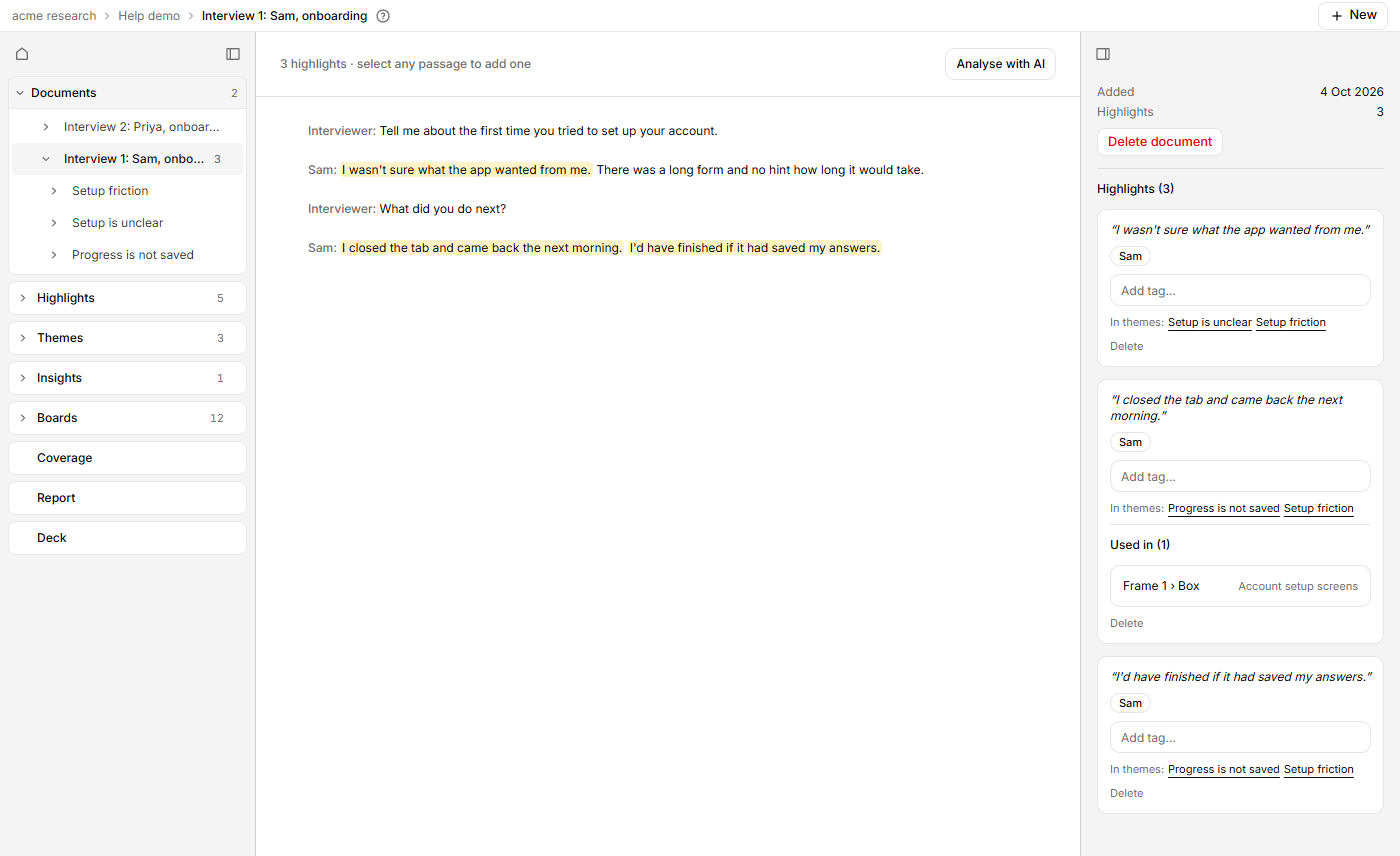
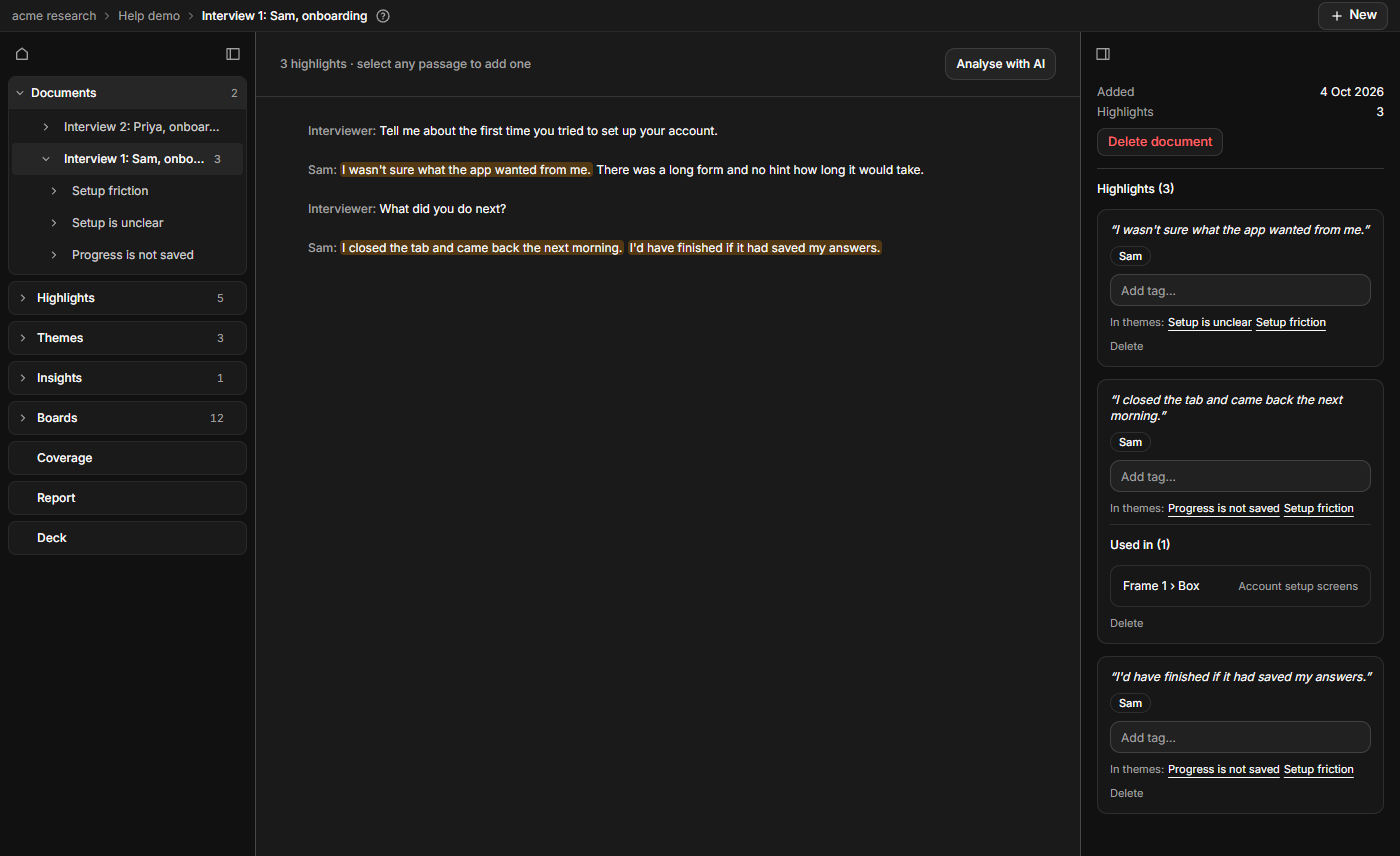
You get a map of the three panels you work in: the tree on the left, the page in the middle and the inspector on the right.
What each panel does
- The tree lists everything in the project: Documents, Highlights, Themes, Insights, Boards, Coverage, Report and Deck. Click a name to open it. See Read the report and build a deck.
- The middle shows what you opened.
- The inspector shows details for what you opened, such as a highlight's tags. It changes as you move.
- The ? beside the breadcrumb opens the help page for whatever is open, in a new tab (hover it to see Help: and the page's name).
- The Project overview icon (a house) sits at the top of the tree. It takes you back to the project's front page.
- While a board is open, the left pane lists what is on that board instead of the project tree (on a prototype, the layers list). The link at the top, a ‹ followed by the board name, closes the board, brings back the project tree and shows the Boards list.
Hide, show and resize the side panels
- Click Hide project tree or Hide inspector to give the middle more room.
- When the tree is hidden, a narrow strip of icons stays. Click Show project tree to bring it back, or click an icon to jump straight to Overview, Highlights, Themes, Insights, Boards, Coverage, Report or Deck.
- Click Show inspector to bring the inspector back.
- Drag the thin line between a side panel and the middle to resize it. Drag it far enough and the panel hides.
Research Mate remembers your choices.
Rename something from the tree
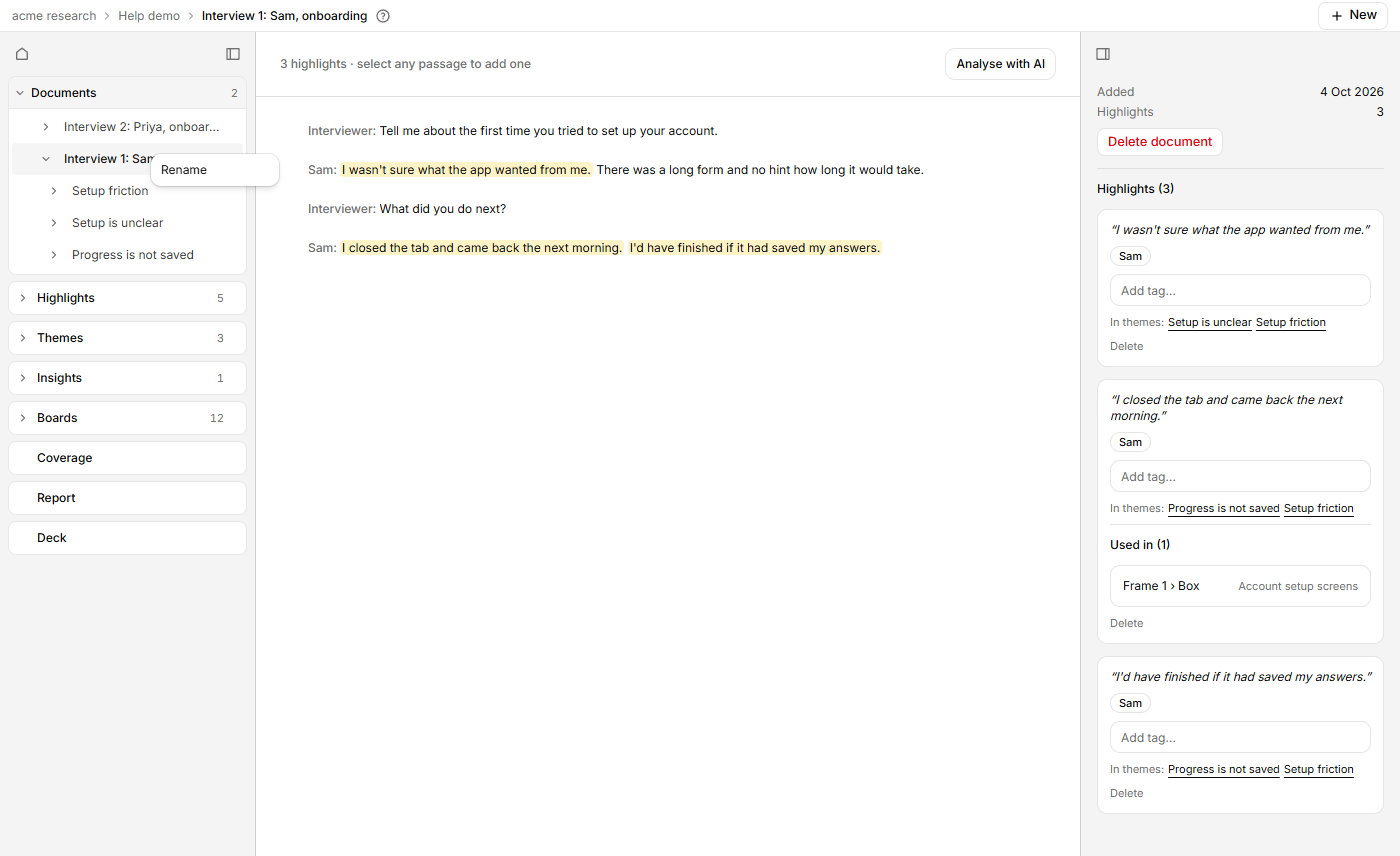
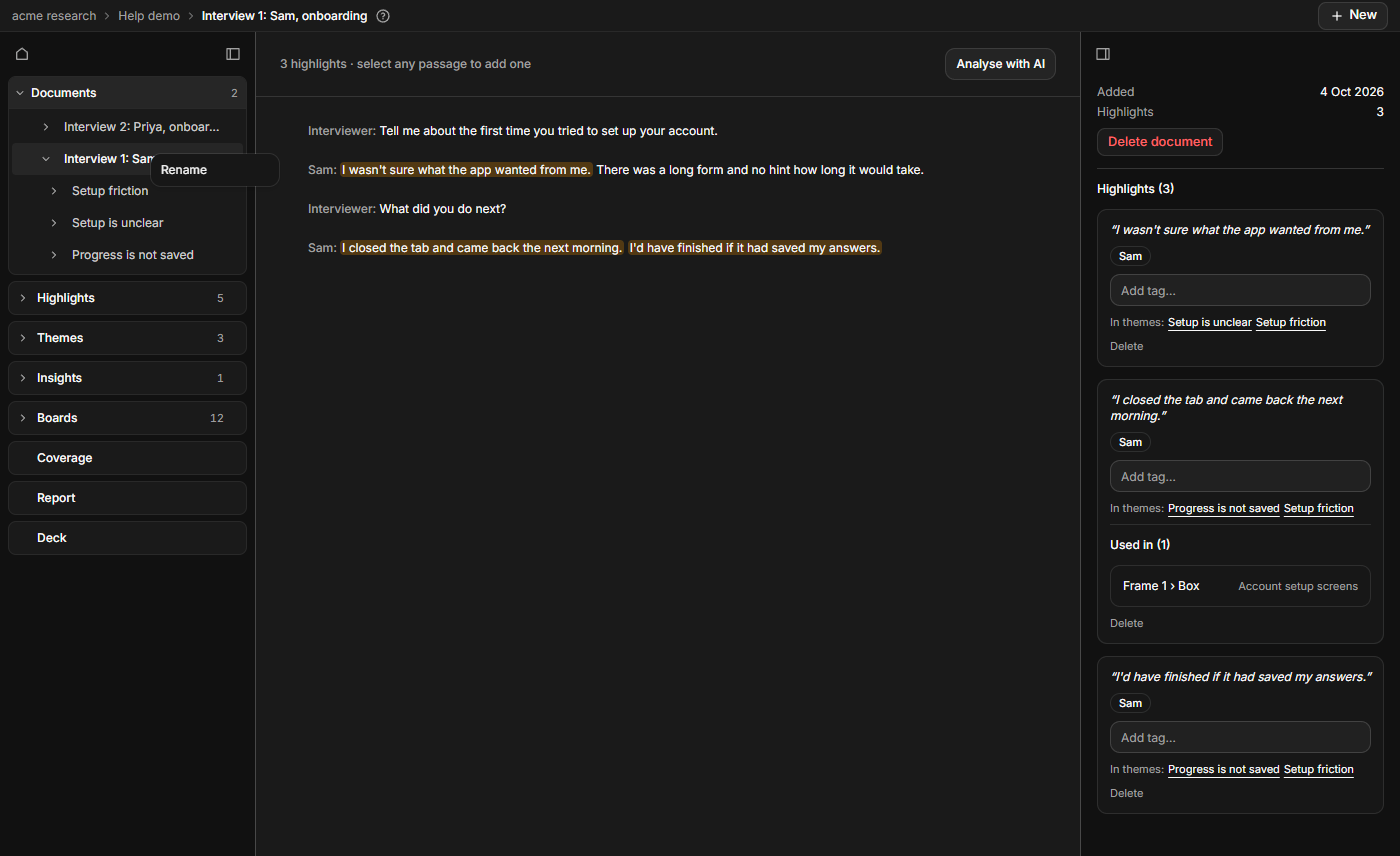
- Right-click a document, theme, insight or board in the tree.
- Click Rename.
- Type the new name and press Enter. Escape cancels.
You can also click into a row with the keyboard and press F2.
Share where you are
The address in your browser changes as you move around the project. Copy it, and a teammate in your organisation opens the same page. A filtered Highlights list works the same way. See Highlight and tag a quote.
Find help
To see every page, click your initials, then Help, or Open the help pages on your profile. The sidebar lists every page, Search help searches across them, and Back to the app takes you back to the organisation you were in. The ? beside the breadcrumb opens just the page for what you are looking at.
If it doesn't work
- A rename that fails puts the old name back and shows a message. Check your connection and try again.
- Highlights themselves can't be renamed.
- Clicking an icon on the strip doesn't re-open the tree. Use Show project tree.