Draw a process diagram
You get a flowchart of how something works behind the screen: steps, decisions, and where it starts and ends, joined by arrows.
If you haven't made a board yet, see Create a board. Service blueprints work the same way, with bands added: see Add bands to a blueprint or journey map. Journey maps have steps only.
The Ask AI panel (top right of the board, or Ctrl/Cmd+J) can fill the board for you: type what to make, and the board's kind sets the shape of the draft. See Draft a board with AI.
Add a step
- Double-click a blank part of the canvas. A step appears under the pointer with its name field open.
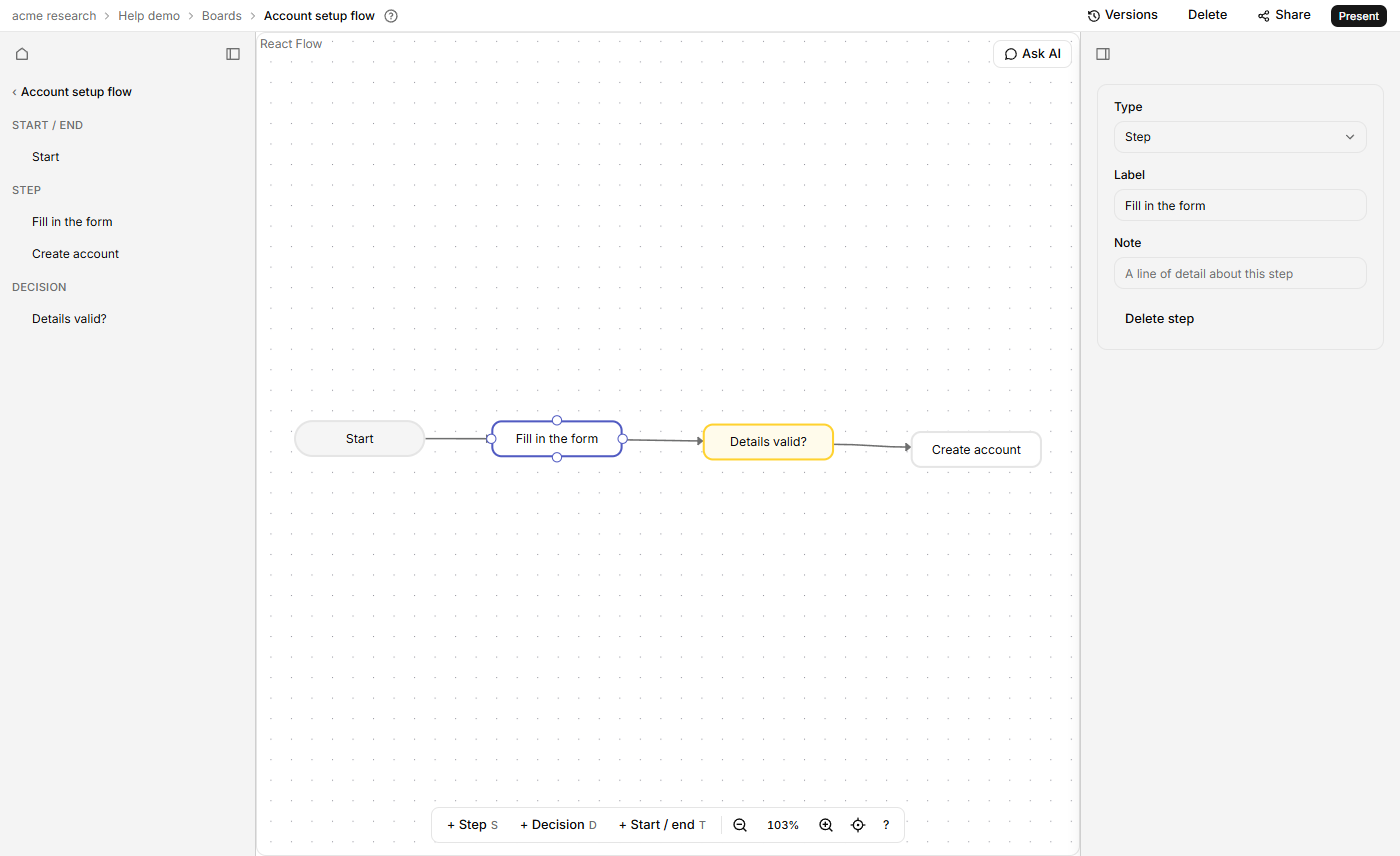
- Or click + Step, + Decision or + Start / end in the bar at the bottom of the canvas, or press S, D or T. The new shape lands near the middle of what you can see.
Type the name and press Enter. Esc cancels, and clicking away saves. An unnamed step shows "Untitled step", a decision "Decision?" and a start or end "Start".
Double-clicking the canvas doesn't zoom it. Pinch, or hold Ctrl/Cmd and turn the wheel, to zoom, or use Zoom in, Zoom out and Fit to view in the bar at the bottom, or the zoom % beside them. Two-finger scrolling moves the view. Keyboard shortcuts for these boards are on Keyboard shortcuts, and the ? at the end of the bar opens a sheet of them.
Join two steps
- Find the small dots on a step's four sides: top, right, bottom and left.
- Drag from a dot on one step onto a dot on another shape.
An arrow now runs between them, from any side to any side. A decision has the same four dots, so each answer can lead somewhere different.
Rename, retype and add detail
Double-click a step to rename it on the canvas. Or select it and use the inspector: Type switches it between Step, Decision and Start / end, Label renames it, and Note holds a line of detail, shown only here in the inspector. Changing the type keeps the label and note.
Delete
- An arrow: double-click it, or click it and press Backspace or Delete.
- A step: select it and press Backspace or Delete, or click Delete node in the inspector. Its arrows go too.
If screens were linked to a step you delete with Backspace or Delete, the board says how many links went: see Link a screen to a process step. Delete node removes them without a message.
There is no undo on this board, so check before you delete. Versions, at the top right before Delete, keeps earlier copies you can go back to.
If it doesn't work
- Backspace does nothing. A field or button outside the canvas has focus and keeps the key. Click the step or arrow on the canvas, then press Backspace or Delete.