Add people to your organisation
You get teammates in your organisation, each with a role, working in the same projects.
Roles
- Owner: whoever created the organisation. Can do everything an admin can, and is the only one who can remove an owner.
- Admin: can invite people, revoke invites and remove members.
- Member: can work in every project and see who else is in the organisation, but can't invite or remove anyone.
Your own role shows on the organisation's home page, as "Signed in as admin."
Invite someone
- Click Members at the top of the page.
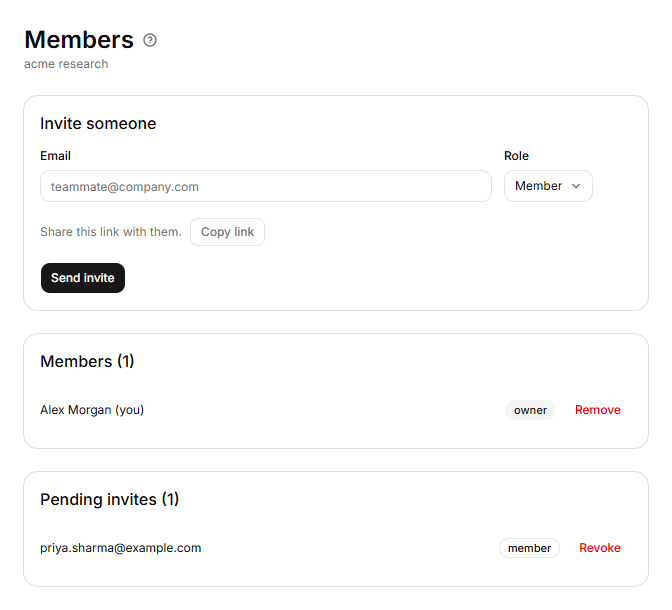
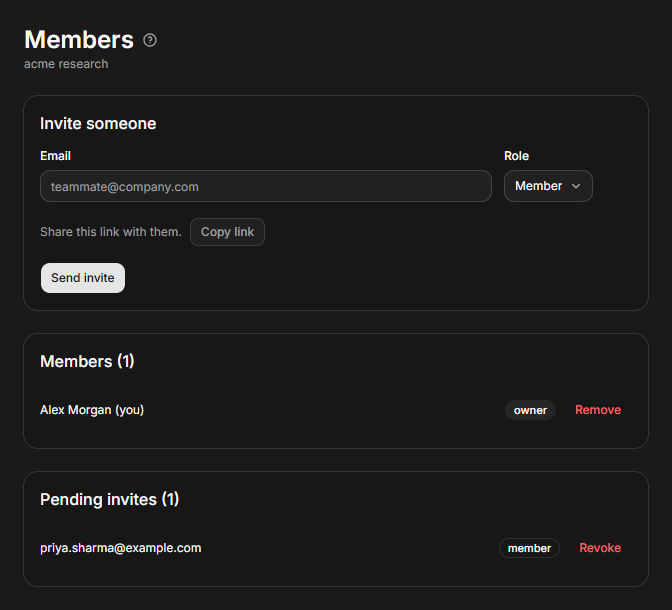
- Under Invite someone, type their Email, and choose a Role: Member, or Admin. You can't invite an owner.
- Click Send invite.
- The page says "Share this link with them." Click Copy link and send the link yourself.
Only owners and admins see Invite someone. The link shows only now, so copy it before you leave the page. If you lose it, click Revoke on the invite and make a new one.
Accept an invite
- Open the link while signed in as the person it was made for. Sign up first if you have no account: see Sign up, sign in and manage your account.
- You join with the role in the invite and land in the organisation.
If you were signed out, the link sends you to the login page. After you log in you land in the organisation you last worked in on that browser (or your first one), or on Create your organization if you have none. Don't make one: open the invite link again.
An invite works once, for 14 days, and only for the email it was made for. Otherwise the page says "Couldn't accept invite" and gives the reason: "Invite not found" (the invite was revoked), "Invite already accepted", "Invite expired" or "Invite email does not match the signed-in account". If you are already a member, you keep your role and the invite is used up.
See and change who is in
Members lists everyone, with a role beside each name and "(you)" beside yours. Names come from each person's profile: their nickname, which starts as the part of their email before the @, or the first word of their full name if they clear it.
- Pending invites lists invites not yet used, with Revoke on each. An expired invite stays there until you revoke it. Only owners and admins see it.
- Remove takes someone out of the organisation. It asks nothing first. Owners and admins see it on every row, their own included.
Removing an owner needs an owner, and an organisation always keeps one: a message says "Only an owner can grant or remove the owner role" or "An org must keep at least one owner."
Make a second organisation
To make your own organisation, see Sign up, sign in and manage your account.
If it doesn't work
- "Too many invites. Try again in a few minutes." You can make 30 invites in 10 minutes.
- There is no way to change someone's role. Remove them and invite them again with the new role.