Make a reusable component
You get a part of your design, such as a button or a card, that you draw once and use many times. Change the original and every copy follows.
Draw the frame first: see Draw screens and shapes on a prototype. To use a component on another board, see Share components between boards.
Make a component
- Select the frame.
- In the Design tab of the inspector, click Create component.
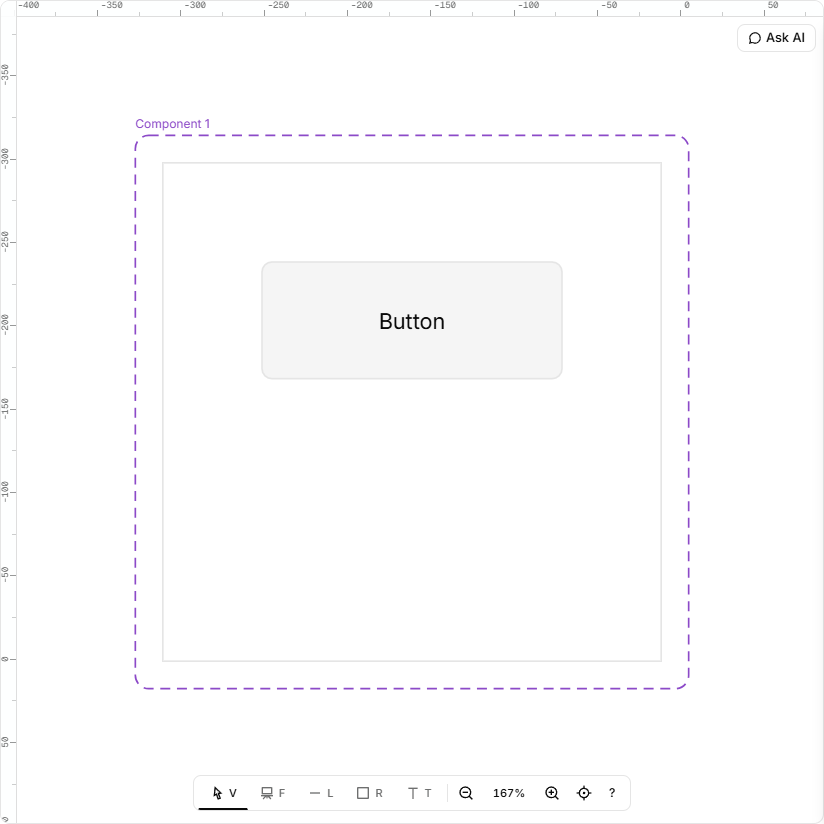
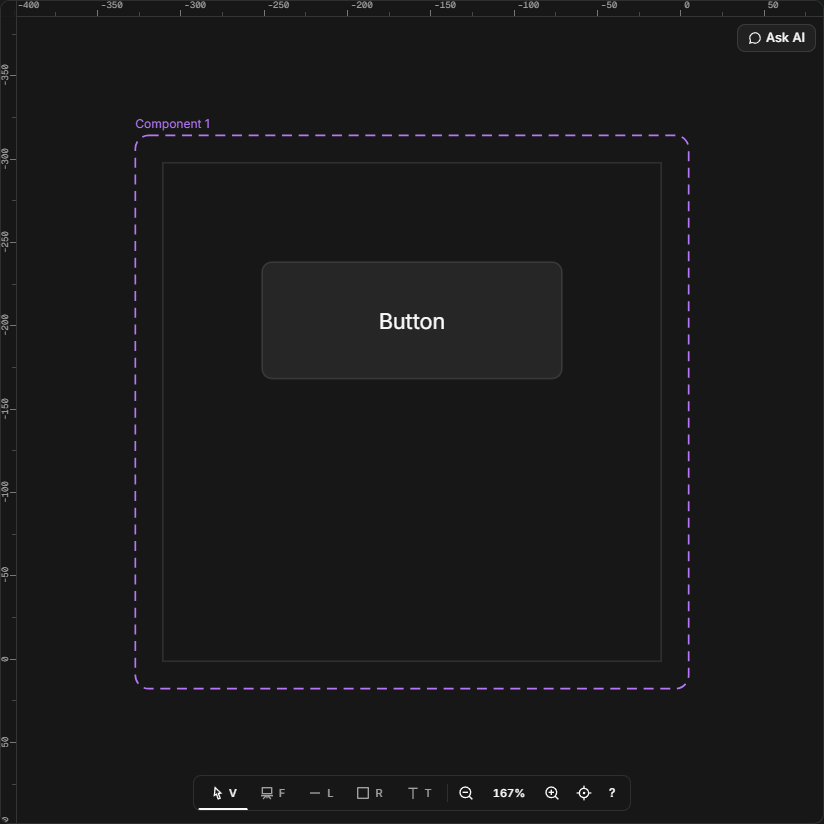
The frame now sits inside a dashed purple outline named "Component 1", then "Component 2" and so on. The outline is the component, and the frame inside it is the master. The layers list marks the component with a puzzle piece and shows the master as a row under it, where you can select it and rename it.
Ctrl/Cmd+Z takes it back off: the outline goes and the frame is an ordinary frame again.
Click anything inside a component and you select the whole component. Double-click to go one level in.
Place a copy
- Select the component or its master.
- Click Place instance.
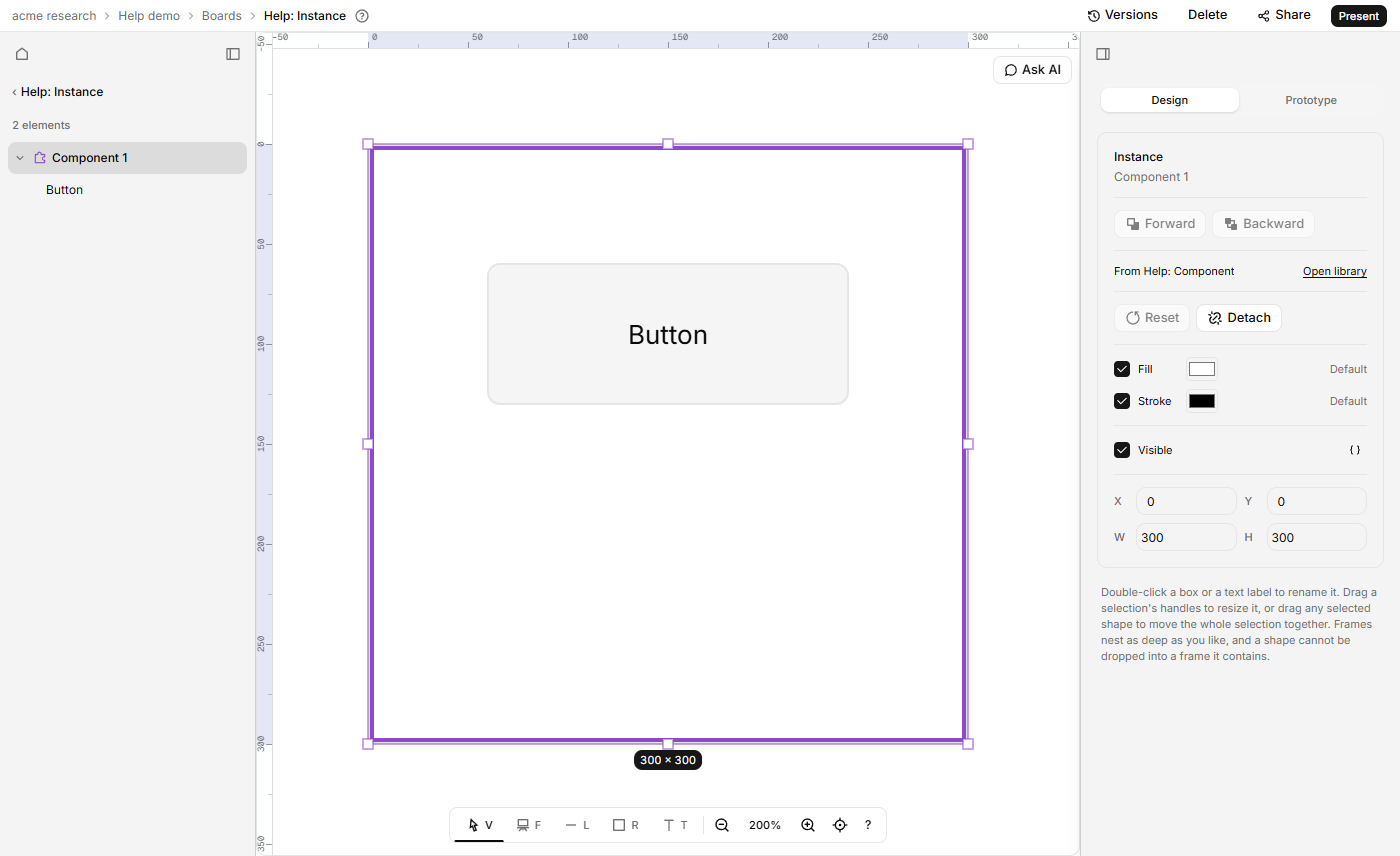
The copy, called an instance, lands a little down and to the right of the original, selected. It takes the component's name until you rename it: double-click its name in the layers list. Ctrl/Cmd+Z removes the copy.
Change the original or one copy
Edit the master (recolour it, add, move or remove shapes in it) and every instance redraws. A copy keeps the size it was placed at. To change one copy only:
- A label: double-click a box or text label inside the instance once for each frame it sits in to select it, double-click again to type, and press Enter.
- A colour: double-click the shape inside the instance until it is selected. The inspector reads "Part of …". Its Fill and Stroke rows change that copy only, and Default puts the component's colour back. Select the instance itself to recolour the whole copy.
A shape inside a copy can't be moved or resized on its own: its X, Y, W and H are read-only.
Reset or detach a copy
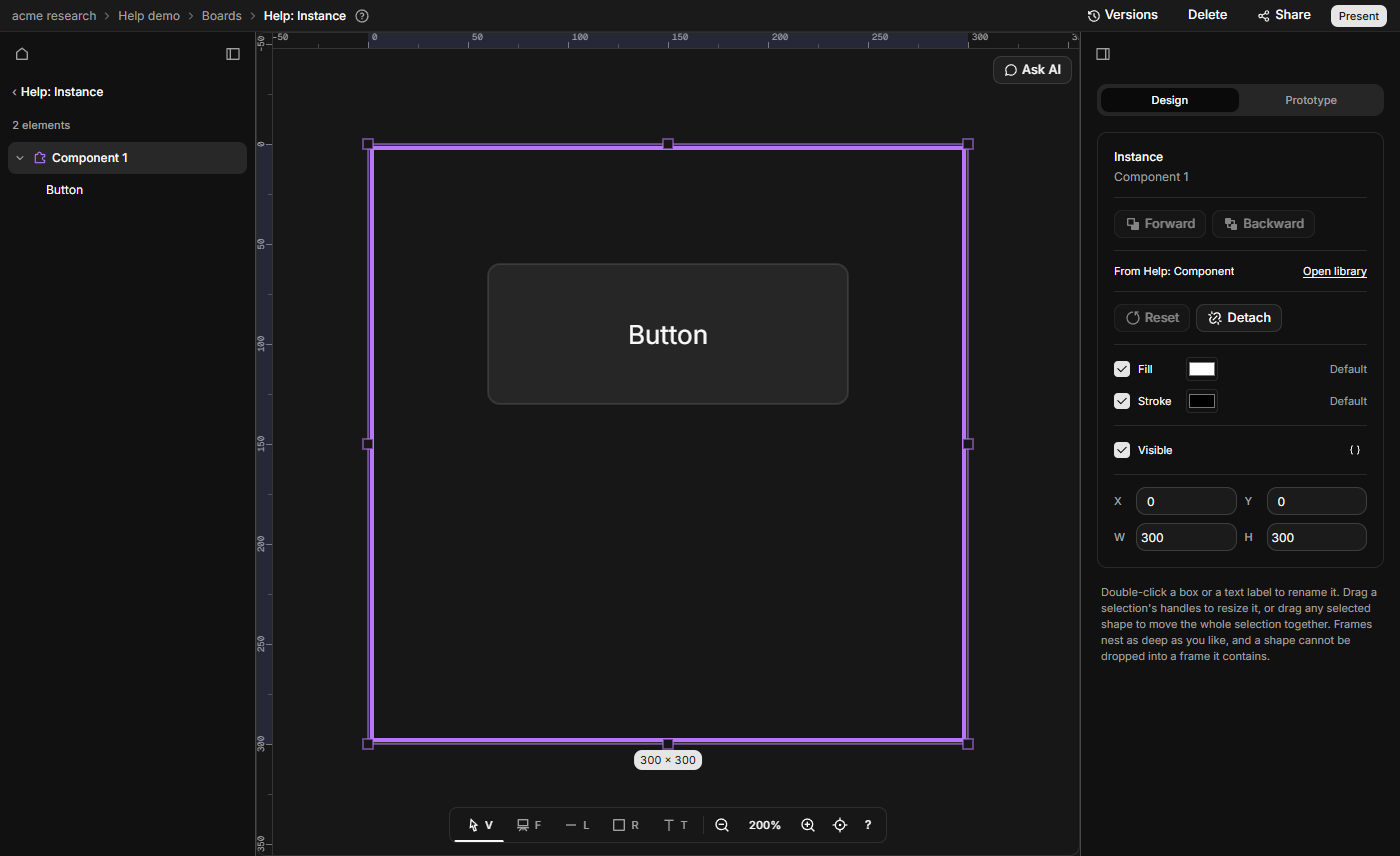
- Reset: puts the labels, colours and name back to the component's. It is greyed out while nothing has changed.
- Detach: turns the instance into an ordinary frame with its own copies of the shapes, no longer following the component. There is no confirmation. Its evidence and interactions stay.
Ctrl/Cmd+Z undoes either. An instance shows the component's own evidence under Why: see Link evidence to a screen or element.
Delete
A component can't be deleted while copies of it exist. The board says so, such as "Frame 1 is still used 2 times. Delete those copies first." It names the frame inside the component. Delete or Detach the copies, then delete the component.
If it doesn't work
- There is no Create component button. Select a frame: only a frame can become a component.
- There is no Place instance button. Select the component or its master, not a shape inside it.
- A drag or a new component is refused. A component can't hold a copy of itself, directly or through another component. The board says "A component cannot contain an instance of itself." or "That would make two components contain each other."