Select, arrange and undo on a prototype
You get control of where shapes sit, how they stack, and a way back from a mistake.
Draw some shapes first: Draw screens and shapes on a prototype.
Select
- Click a shape to select it. Click anything inside a screen and the whole screen is selected. Click empty canvas to select nothing.
- Double-click goes one level in: with a screen selected, double-click a frame inside it to select that frame, and again to go one more level in.
- Press Enter to go one level in and select everything there: with a screen selected, that is every shape directly inside it. Tab and Shift+Tab step to the next or previous of those shapes. Shift+Enter goes one level back up, and Esc clears the selection.
- Once a shape is selected, Tab steps between shapes, so press Esc, then Tab, to move on from the canvas.
- These keys work after you press on the canvas. They do nothing while you are typing in a field or using the Layers list.
- Shift+click a shape to add it to the selection, or to take it out.
- Drag on empty canvas to draw a band, and select everything it touches. A click that doesn't move selects nothing.
- Shift+drag on empty canvas adds what the band touches to the selection.
Move around the canvas
- Scroll with two fingers on a trackpad, or turn the mouse wheel, to move the view.
- Pinch, or hold Ctrl/Cmd and turn the wheel, to zoom around the pointer.
- Hold Space and drag, or drag with the middle button, to move the view. This works over a shape too, and the shape stays where it is.
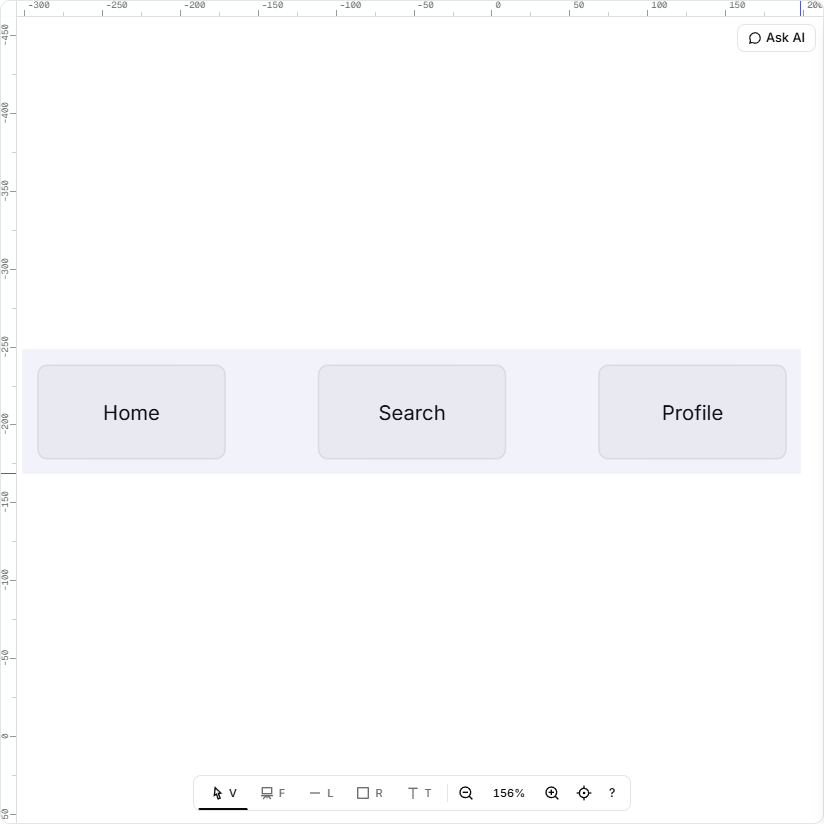
Move, resize and set exact numbers
- Drag a selected shape to move it, including a press on the 8 px ring just outside its edge. A frame takes its contents with it. To drag a shape out of its frame, select the shape first.
- Drag a handle on its edge to resize it. A line selected on its own has a handle at each end, and only its length changes.
- For exact values, type in X, Y, W and H in the inspector, or drag sideways from a letter or the field's left edge. Inside a frame, X and Y are measured from the frame's corner.
Copy, stack and delete
- Duplicate: press Ctrl/Cmd+D. The copy lands a little down and to the right, and is selected.
- Copy, cut and paste: press Ctrl/Cmd+C, Ctrl/Cmd+X and Ctrl/Cmd+V. A paste puts the top left of what you copied at the pointer, on top of the other shapes, inside the frame under it if there is one. With the pointer off the canvas, it lands in the middle of the view. You can paste on another prototype board in your organisation, but another organisation's shapes are refused with "Those shapes are from another organisation." A cut that can't delete, as Delete can't, shows the delete's message and copies nothing.
- Alt+drag: hold Alt and drag a selected shape. The original stays, and a copy drops where you let go. The copy is selected, so you can Alt+drag again.
- Stack: select one shape and click Forward or Backward in the inspector. The right-click menu does it too: see Use the right-click menu.
- Delete: press Backspace or Delete. A frame's contents go with it, with no confirmation. A message counts any evidence or logic links removed, which undo won't restore.
A copy carries the shapes only, not their interactions or evidence or logic links. To copy a component, select the whole component on its own. An instance pasted onto another board needs its component too, unless it comes from a library: otherwise the board says "Copy its component too." Paste, duplicate and Alt+drag make at most 500 shapes at once.
Zoom and guides
Zoom in, Zoom out and Fit to view are in the bar at the bottom of the canvas, with the zoom % between them for more choices. The range is 2% to 200%.
A guide is a line your shapes snap to, in this tab only. Drag down from the ruler along the top edge for a horizontal guide, or right from the ruler down the left edge for a vertical one. Or select nothing and click Add horizontal guide or Add vertical guide and type its position in X or Y, or drag sideways from its letter. To remove one, double-click it, or select it and press Backspace, or click Remove guide.
Undo and redo
Press Ctrl/Cmd+Z to undo, and Ctrl+Y or Ctrl/Cmd+Shift+Z to redo. Undo goes back up to 50 steps and stays with this tab, even through a reload. A change of selection counts as a step, so you may press Ctrl/Cmd+Z once more than you expect. Undo does nothing while you are typing in a field.
If it doesn't work
- A shape you deleted came back without its links. Undo restores the shape and its interactions, but not evidence or logic links.
- A paste does nothing. Click the canvas first: a text field that has focus keeps the keys. Text copied elsewhere is ignored.